ADMIN accounts
I have logged in as an admin, but I can't see the usage statistics
In order to see the usage statistics of your institution, make sure that you are accessing from the IP ranges of your institution.
To verify it, check if the name of your institution appears in the upper right corner of the screen before identifying yourself as an administrator.
How can I retrieve my statistics?
As administrator, your account will allow you to access statistics any time. You need to request an admin account if you haven't one.
Once you are on the web site, click on Login (upper right corner) and identify yourself with the username and password provided .
You will then see the Admin menu where you will find the option "Statistics".
The table you see in the right is a summary of your institution’s activity from the first time it was registered in our system.
From the left side, you can select the type of report, dates and number of results you'd like to get. Then click on "Send".
Please note that you need to access from within the IP ranges of your institution to get the statistics. Otherwise, the counter will show 0.
Download full documents
Can I download ebooks to my tablets, PC, etc?
Yes. If your library has requested that service, you will be able to download ebooks using Adobe DRM. You first need to to create a personal account in Digitalia and to install Adobe Digital Editions on your computer or device (free online) http://www.adobe.com/es/products/digital-editions/download.html
How many documents can a user download and for how long?
Patrons can download 5 documents at a time and the loan period is 20 days. Users can return early. There is a limit of 5 downloads per day.
What does a user need to download files?
In order to download a file, every user has to create an individual account in Digitalia and install the program Adobe Digital Editions. If they want to download it directly from a mobile device, they would need an app that can read documents with DRM.
They would also need Internet connexion when starting the download. Once downloaded, they will be able to read the file off-line.
Downloading books for the first time?
If it’s your first time downloading a document onto your computer via Adobe Digital Editions:
Installing Adobe Digital Editions
The steps to download and install Adobe Digital Editions (ADE onwards) are:
1. Click on the following link to access: https://www.adobe.com/es/solutions/ebook/digital-editions/download.html to access the ADE website.
2. To start the installation of ADE, select the plataform you use (Windows or Macintosh)
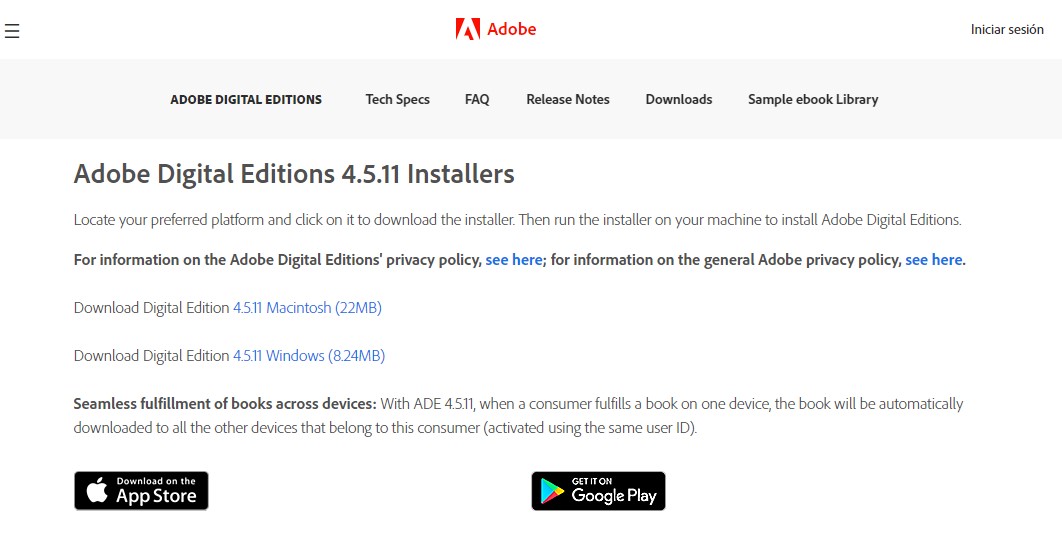
3. Accept the licence terms and click on the Next button.
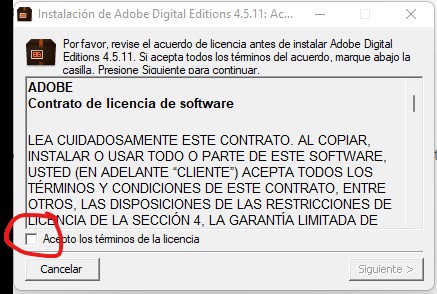
4. In the new form, select the first option "Associate types of file .acsm and .epub", and select the shortcuts you want to install on your computer. Then click the Next button.
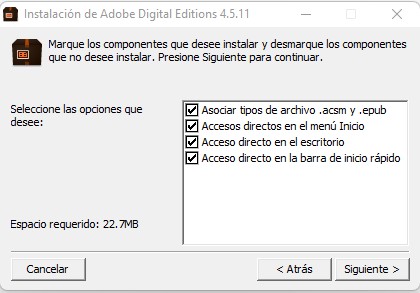
5. In the form below, find the location on your computer where you want to install ADE (you can leave the default address). After selecting the directory, click on the Install button.
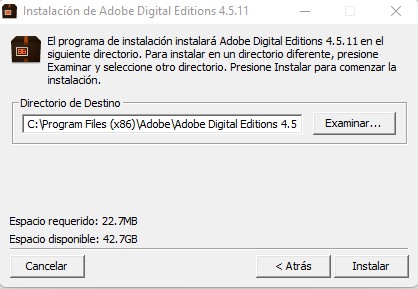
6. Next, the installation process will begin. Once it has finished, Adobe Digital Editions will open on your computer.
7. Click on "Help" - "Authorize computer".
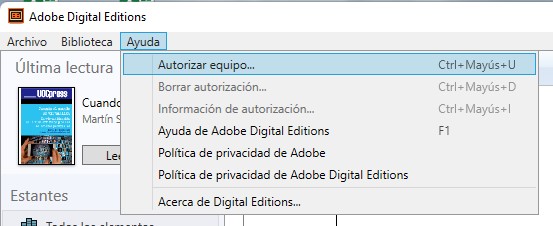
8. In the new form you need to authenticate your computer: enter your Adobe ID and password.
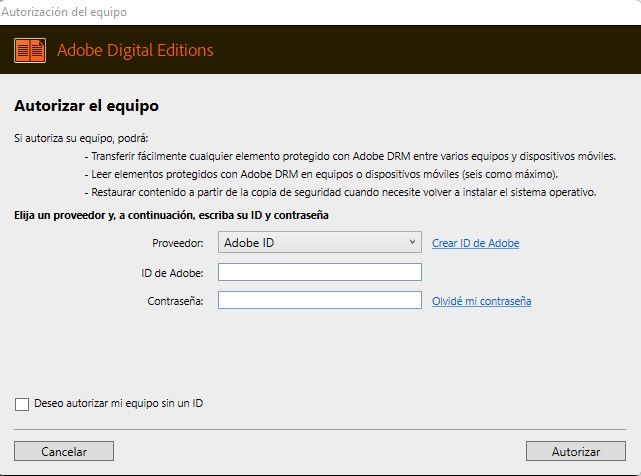
You can get an Adobe ID in the following link:
https://www.adobe.com/cfusion/membership/index.cfm?loc=es%5Fes&nl=1&nf=1
To authenticate the installation will allow you to read eBooks on up to 6 different devices (personal computer, laptop, tablets, eReaders, etc.).
These devices must also be authenticated with your Adobe ID.
If you do not authenticate the installation "Adobe ID", this will be anonymous and electronic books may NOT be transferred to other devices.
You will have to repeat these steps on each computer you want to read eBooks.
Note 1 DRM protection:
Any e-book that has been read or downloaded BEFORE activating an Adobe ID, will not be available once your Adobe ID function is activated.
Note 2 DRM protection:
Any e-book that has been read or downloaded with a DIFFERENT Adobe ID from yours, will not be available with your Adobe ID.
How can I authorize and de-authorize my Adobe Digital Editions?
To read a book that is protected with Digital Rights Management (DRM) you need to authorize Adobe Digital Editions on your device.
In order to authorize your Adobe Digital Editions:
If you don't have an Adobe ID you will be asked to create one.
You can also authorize without an ID, but then you will only be able to read the book on the current device. You won't be able to transfer it to an eReader or other computers or tablets.
Keep in mind that the book becomes linked to the Adobe ID that is currently authorized. So, if several people use the same computer, remember to always authorize with your Adobe ID before downloading a new book.
Sometimes it can be helpful to de-authorize Adobe Digital Editions:
To download a book for offline reading on a mobile device or tablet
For downloading electronic books directly on mobile devices, such as iPhones, iPads and Android phones and tablets, we recommend the free app PocketBook , although you can use any other app that is capable of reading books with DRM (Aldiko, Adobe Digital Editions, etc.)
We recommend using a browser on your device to access your Digitalia site and to download the book directly to your device:
FIRST TIME ONLY:
I. Install PocketBook on your device
1. On your device, click App Store (for iOS) or Play Store (for Android)
2. Search for "PocketBook Reader"
3. Install it on your device
4. Open the application
a. On Android devices: click on the upper-left icon and go to “Adobe DRM”
b. On iOS devices: click on "More", in the lower-right corner, "Configuration" and "Adobe DRM".
5. Enter your Adobe ID data
If you don’t have an Adobe ID, click on "Create Adobe ID" and follow instructions.
If you have already installed and configurated PocketBook on your device, START HERE
II. Download books using your device :
1. On your device, use a browser to connect to your Digitalia site
2. Sign in to your personal Digitalia account . If you still don’t have one, you can create it from here: http://www.digitaliapublishing.com/registro
3. Search in Digitalia the document you want to download
4. Click on "Adobe DRM Checkout" button
5. Select the format you want to download (pdf or epub)
6a. On iOS devices:
- Look for the downloaded file and click on it
- If it is not opened in the app, clic on the “Share” button
- Look for PocketBook among the options
- If PocketBook is not on the list, click on “More” to see the complete list
- Select PocketBook
6b. On Android devices:
- If you have installed PocketBook on your device, click on the downloaded file and the app will open automatically.
III. Read downloaded books – no Internet access required:
1. On your device, open PocketBook
2. Open one of the books you have already downloaded
3. Read and enjoy!
How are the borrowed documents returned?
You don’t need to return the documents. When the loan expires, the document will be corrupted and you won’t be able to access to it anymore.
But if you want to return the documents earlier, you can do so by selecting the book you want to return in your library in Adobe Digital Editions. Make a right-click (or control-click for Mac) on it, and then click on "Return Borrowed Item".
It will ask if you are sure you want to return the eBook. Click "Return" to confirm.
If you are using the app PocketBook, select the book you want to retutn and click on the upper-right icon to see more options, and click on "Return loan book".
Note: this funcionality is not available on iOS devices
Can the users reserve books when they are already borrowed to other users?
It is not necessary! We offer a multiuser loan, so all the books are always available to be downloaded by any user anytime.
Can downloaded books be transferred to an e-book reader?
If you have downloaded an ebook in your computer, and you want to transfer it to your ereader, please, connect the ereader to your computer.
Now open Adobe Digital Editions and go to the Library menu.
Your ereader will appear in the left menu under Devices.
Just click on the ebook you want to transfer and drag it over to your device.
Once the transfer is complete, you can disconnect your ereader.
Please, be sure that your ereader can read the type of document you are downloading (PDF or ePub).
Why can't I download an ebook on loan?
There may be several reasons why you can't download a book on loan:
How to solve the most common errors with Adobe Digital Editions?
Here we are detailing some common Adobe Digital Editions errors you may find:
This error occurs when the authorization information is damaged. The solution is to re-authorize Adobe Digital Editions.
This message indicates that the book was downloaded with an Adobe ID different than the one you are currently using.
Verify if Adobe Digital Editions (ADE) is authorized with the same Adobe ID you used to download the book. If it is not, de-authorize ADE and authorize it again with the correct ID.
If you downloaded the book without an Adobe ID and you are now getting this message, please contact us on info@digitalia.us and let us know the title and URL of the book and the e-mail you registered with in Digitalia. We will return the book for you and you will be able to download it again with the correct Adobe ID.
This error indicates that there was a problem downloading the file. Please contact us on info@digitalia.us and let us know the title and URL of the book and the e-mail you registered with in Digitalia.
This message shows when your system’s settings (time, date or time zone) are incorrect or when you are trying to open an .acsm file that has already expired (it will expire after about 10 minutes of downloading it)
Please check your computer’s time, date and time zone. Then download the file again and open it immediately.
This error typically appears when you are trying to return a title in Adobe Digital Editions (ADE). Usually the book has been successfully returned, but it will still appear in your ADE library.
Verify in your Digitalia account if the book has been returned. If it doesn’t appear in your active loans (do not confuse with your loan history), it has been returned. Then you just need to delete it from your ADE library (without returning it)
If the book still appears as an active loan, please contact us on info@digitalia.us and let us know the title and URL of the book and the e-mail you registered with in Digitalia. We will return it for you.
To solve this error please try to update to the newest version. You can also try to de-authorize your Adobe Digital Editions and authorize it again.
Many other problems can be solved by de-authorizing Adobe Digital Editions and re-authorizing it.
If your problem is not listed above, you can search the name of the error in the official assistance page for Adobe Digital Editions.
Also, you can try to update to the most recent version of Adobe Digital Editions.
General overview
What are Digitalia eBooks?
Digitalia eBooks are a new way to discover and enjoy your favorite books online powered by Digitalia. With Digitalia you can do the following:
Digitalia ebooks are offered as pdf and/or epub. You have available online readers, and you can also download your ebooks on loan.
How do I find Digitalia eBooks and ejournals?
Finding Digitalia eBook and ejournals on our database is easy. Simply visit our homepage and browse our collections there, or use our search box above: Yo can search there by author, isbn or title, or just launch a general full text search
You may also use our Advanced Search page in a similar manner, where you will find advanced options to search and improve your requests to our database.
What format uses Digitalia ?
Currently we offer access to all ebooks in one or more of the following formats: PDF, ePub and Audio viewer. We have available online readers for all of these formats, and you can also download your ebooks with Adobe Digital Editions if your institution has hired this service.
MARC cataloguing
How can the library download the MARC 21 records of the database?
Digitalia MARC 21 records can be downloaded at the url http://www.digitaliapublishing.com/w/67 by library professionals free of charge and they can be loaded into your library's catalog directly.
MARC records for both books and journals are in MARC 21 format and created using AACR2 cataloging rules (until 2014) and RDA (from 2014). Digitalia records are compliant with NACO and SACO, and Library of Congress guidelines, contain LC call numbers, and are provided in MARC 21 format with MARC-8 or UTF-8 character encoding.
Personal Account
May I save a selection of titles?
Of course. Digitalia allows you to create your own lists, so you can save the contents you are interested in.
From your account, or from the top drop-down menu, you can access to “My lists”.
There, you can create a “New list”, name it and even add a little description.
To add content to this list, browse or search the catalog to look for the documents you are interested in, and select them by checking the box situated over the title. Please make sure you have selected the correct list.
.jpg)
What does my personal account allow me?
When your institution has access to Digitalia website, your personal account will be useful for you to:
Can I share Digitalia eBooks?
Digitalia offers multiuser access within the library campus and very broad permissions to download ebooks within the IP Campus that has access.
Interlibray loans (ILL) are available only between institutions with license agreement with Digitalia. An institution without the license signed, would not have the legal necessary framework to use our ebooks.
Search options
How can I do a simple search in your catalog?
At any moment, you can use the simple search, situated above the titles.
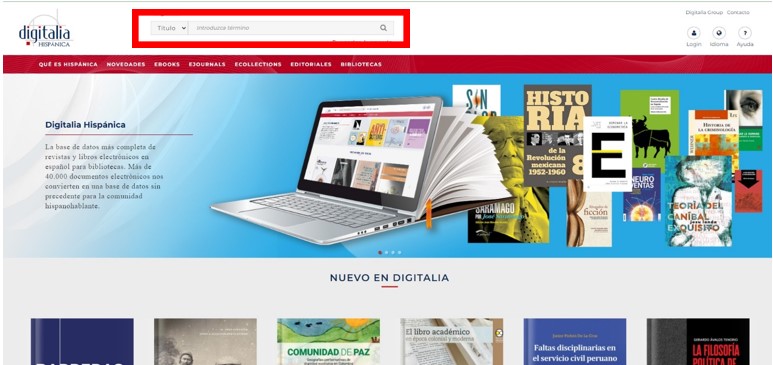
Select the field where you would like to search, on the pull-down menu: title, author or ISBN, or select “Full text” if you wish to search by keyword inside the document.
The searcher is not case sensitive and don't consider the accents. However, to search by ISBN, you have to write the number without dash.
The search results list will display in order of relevance, being able to refine your search, if necessary, by the options on the right-hand bar: publisher, subject, format, year, language and country.
For further information, please, consult our user guide.
How do I perform an advanced search at your catalog?
You can access the advanced search, by clicking the “advanced search” button, next to the simple search bar.
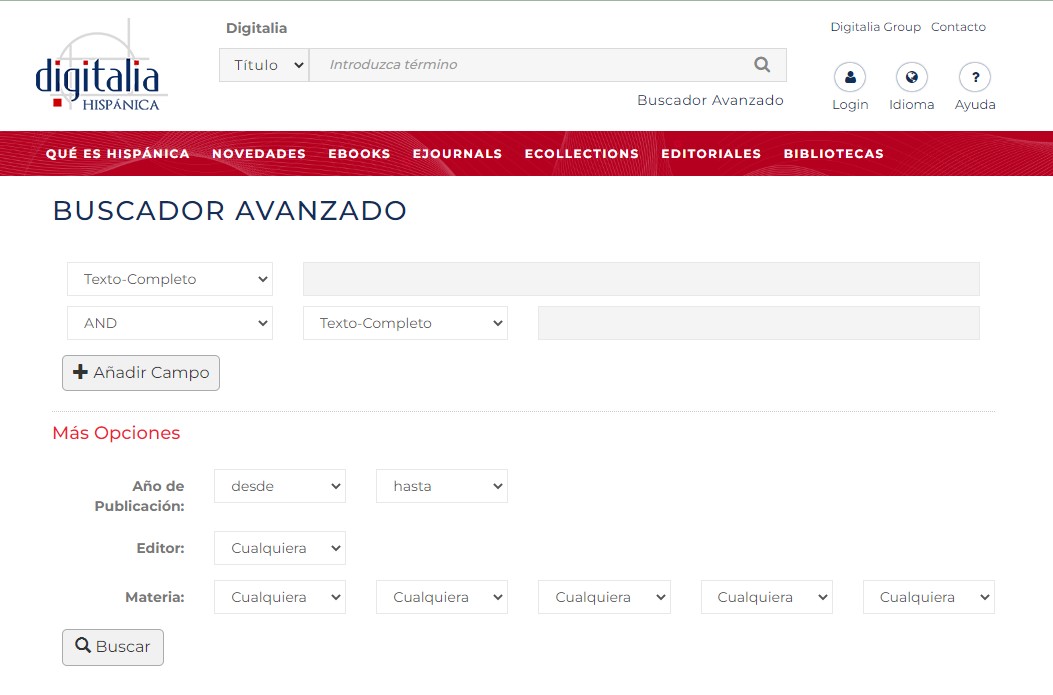
First, select the field where you want to search, on the pull-down menu: author, title, ISBN, ISSN, eISBN or full-text.
Secondly, you can add a second term or sentence to the search, and make a boolean search, by selecting:
If necessary, you can add all the fields you consider opportune to make your search more specific.
Besides, we can filter the search by one or more of the following options:
Is it possible to browse the catalog?
Yes, at the top bar, you can find five direct accesses: new content, ebooks, ejournals, ecollections and publishers.
Clicking on "ebooks", a subject chart will be displayed. Select the subject of your interest to access to all the related ebooks.
You can browse the ejournals in alphabetical order or by subject by clicking on "ejournals".
Our "ecollections" are themed collections containing both books and journals and can also include one or some of the subject classifications.
Last option shows a list of all the publishers that are part of our database, so you can choose one of them to see all the titles.
For further information, please, consult our user guide.
What are the ecollections?
Our collections contain both ebooks and ejournals from selected topics, and they may include one or more subjects from our subject chart.
Select the collection you are interested in, and automatically the titles that form it, will be shown.
Tutorial Videos
View Documents
How can I see the complete documents?
In the first place, please be sure that you see the name of your University or Library in the upper-right corner.
Once you have located the document you are interested in, click on the cover or the title and you will access to the full bibliography card.
In this same page, you can export the card to your reference manager, RefWorks or EndNote, with a simple click on the corresponding button on the drop-down menu "Export book".
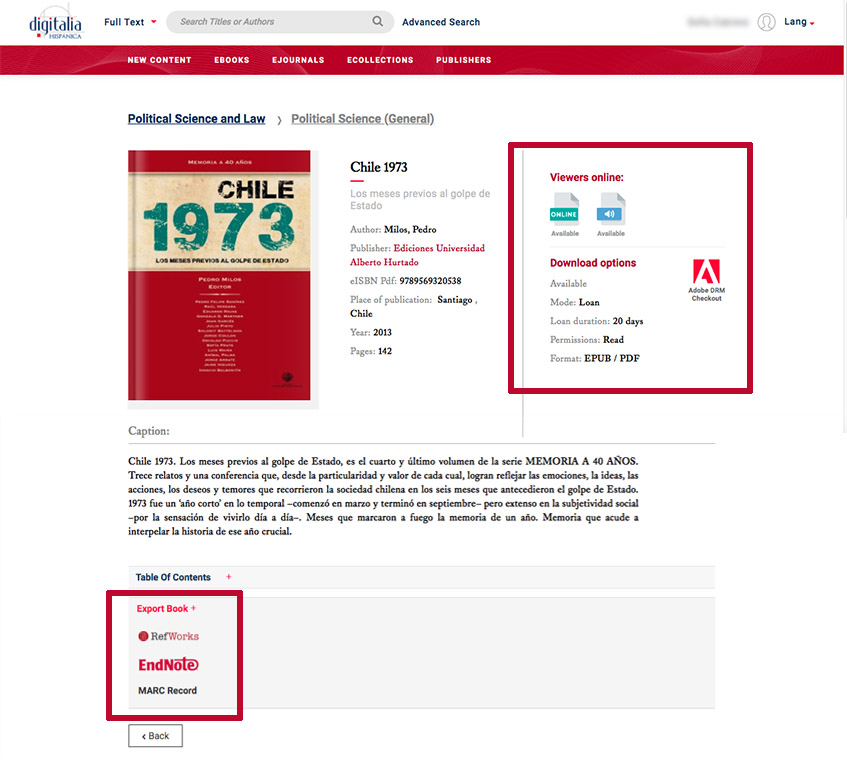
You will be shown one or more options to visualize the document: pdf format, epub format or Audio.
With any of the options, it will open a screen viewer where you can consult the documents and do full-text searches.
For further information, please, consult our user guide.
User guide